Once you've connected your chosen company file to exportmybooks.com, you can get started on your conversion. If you haven't connected yet, click here to learn how to connect your company file to exportmybooks.com.
Jump to section:
- Choose Your Export Settings
- While the File Is Processing
- Once the Conversion is Completed
- Session Time Out
- Watch the Video
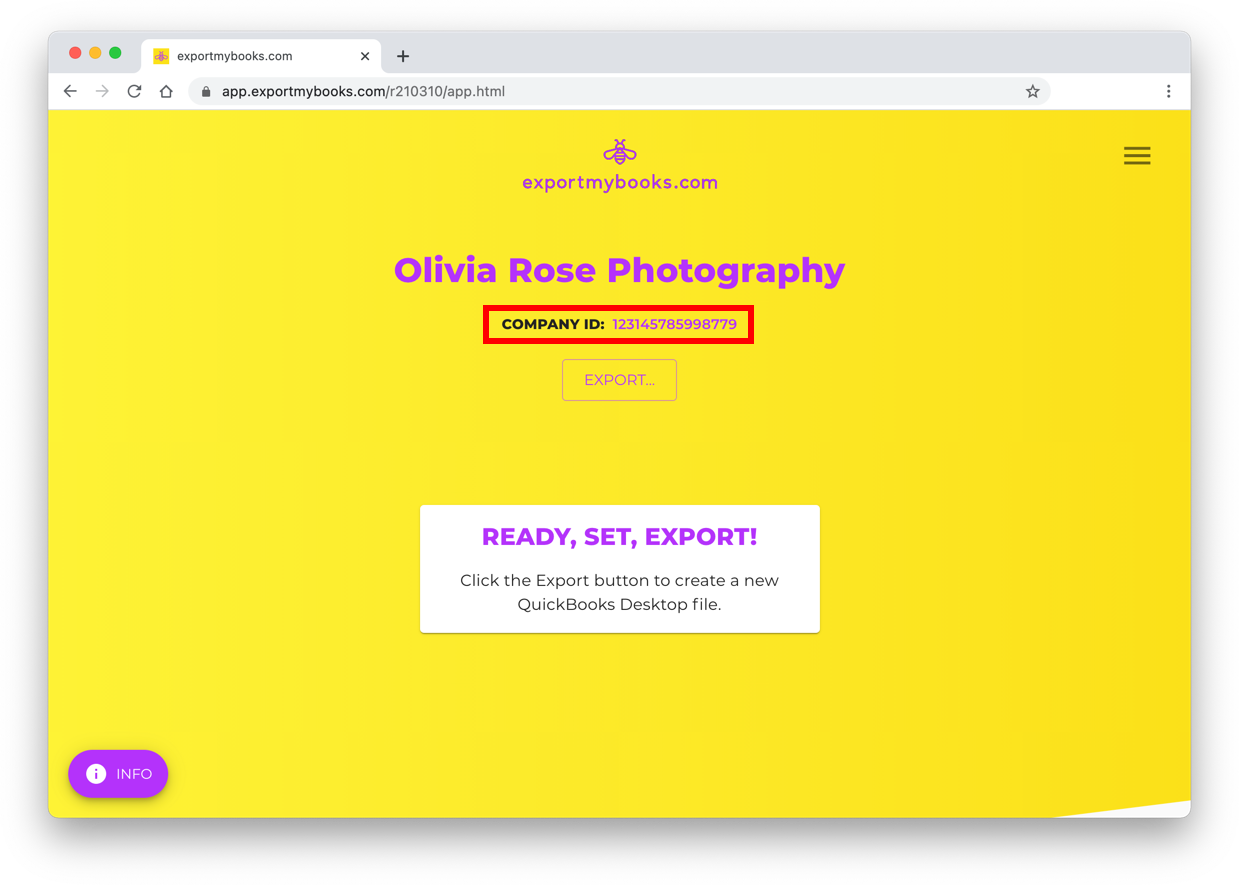
As a first step, make sure the company ID shown on the dashboard matches your company ID in QuickBooks Online.
Choose Your Export Settings
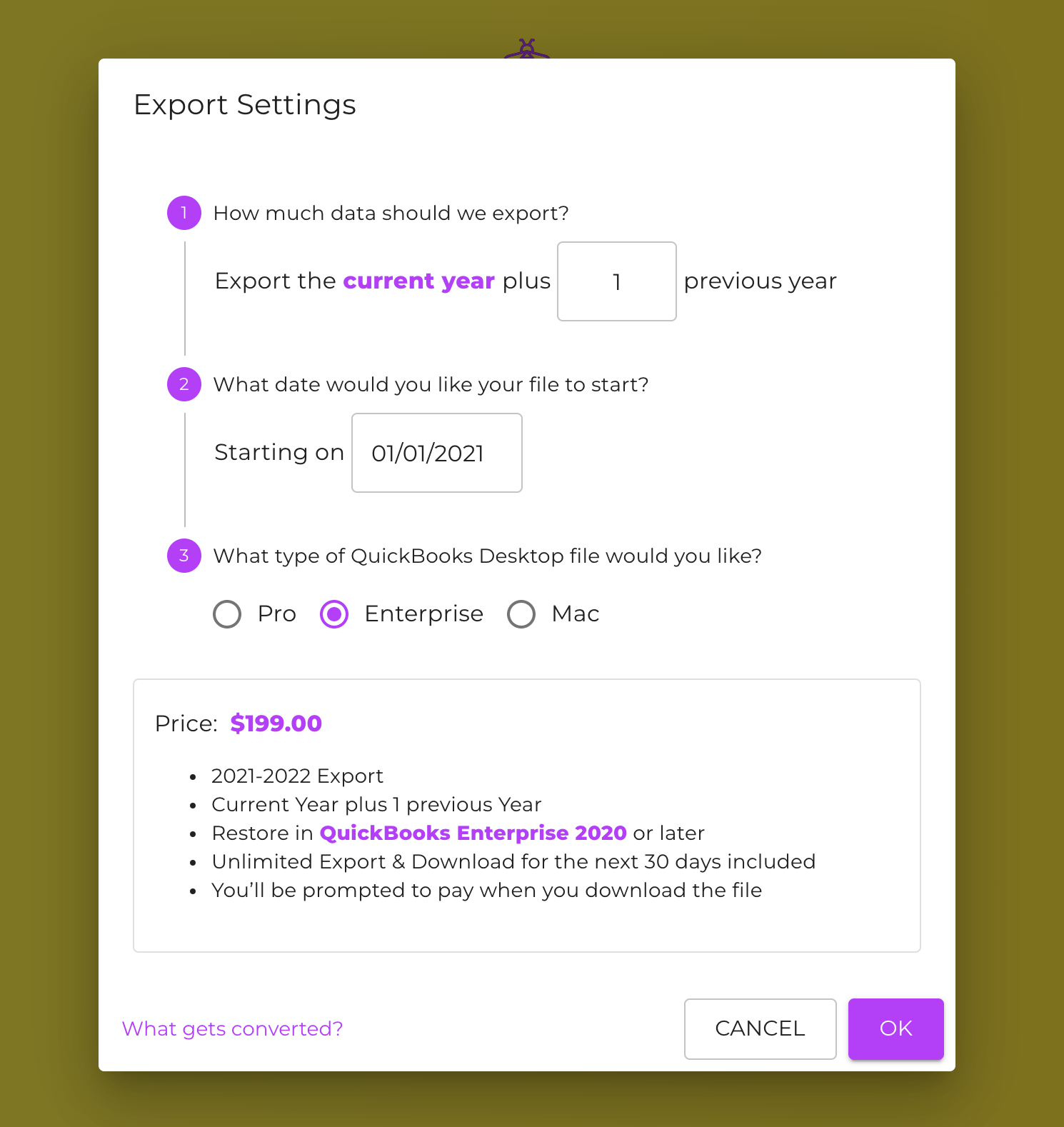
- Click the EXPORT... button
- Enter the number of years of QuickBooks Online data you would like to convert
- Modify the start date if needed. All balances and transactions on or after the chosen start date will be converted over
- Select the QuickBooks Desktop file type (US Windows Pro/Premier, US Enterprise, or Mac).
- Click OK
Your current conversion will be added to the dashboard as "Processing". You can close the window but please do not Disconnect from exportmybooks.com while your conversion is processing.
While the File is Processing
We will send status updates to the QuickBooks Online email address used to log into exportmybooks.com. Most conversions complete within a couple hours, but large and/or complex files can take several days.
We recommend to wait 30 minutes after starting your export before resuming work on the QuickBooks Online company file to avoid any conflicts. Note that any changes made in QuickBooks Online after starting a conversion will not be reflected in the converted file.
You can check the status of your conversion at any time by logging back into app.exportmybooks.com and clicking the Refresh button near the bottom of the window.
Once the Conversion is Completed
Once you've received the email letting you know the conversion has succeeded, log back into app.exportmybooks.com to purchase and download the file.
Full instructions for purchasing, downloading, and restoring the new file in Desktop/Enterprise can be found here.
Session Time Out
If you stay on this page for a period of time, you may receive a "Session has timed out" message. Don't worry, this doesn't impact your conversion and your file is still processing. For security reasons Intuit logs you out of your current session due to inactivity.
You can exit out of exportmybooks.com without affecting the conversion. However, if you select the option to Disconnect, your conversion will be cancelled.
Watch: How to Move from QuickBooks Online to QuickBooks Desktop with exportmybooks.com
Next Up: Your conversion has completed, here's what to do next
Related Articles: